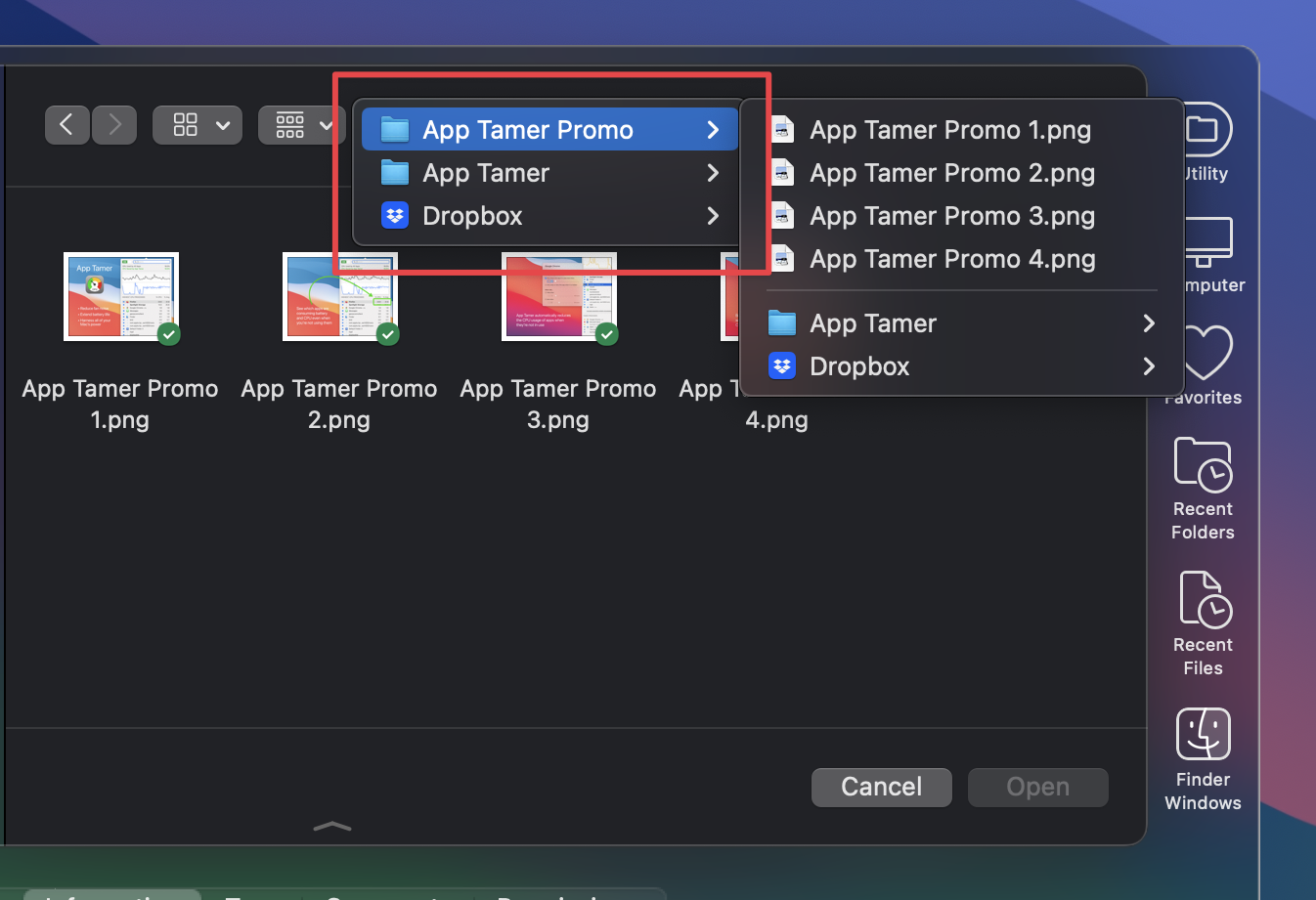
So, in the last release of Default Folder X I added a somewhat complex (and relatively slow) feature to determine the correct name, location and icon for the Dropbox, OneDrive, Google Drive and Box Drive folders. It was only intended to be used for the top-level folders, so its slower speed wasn’t really an issue – it’s used infrequently.
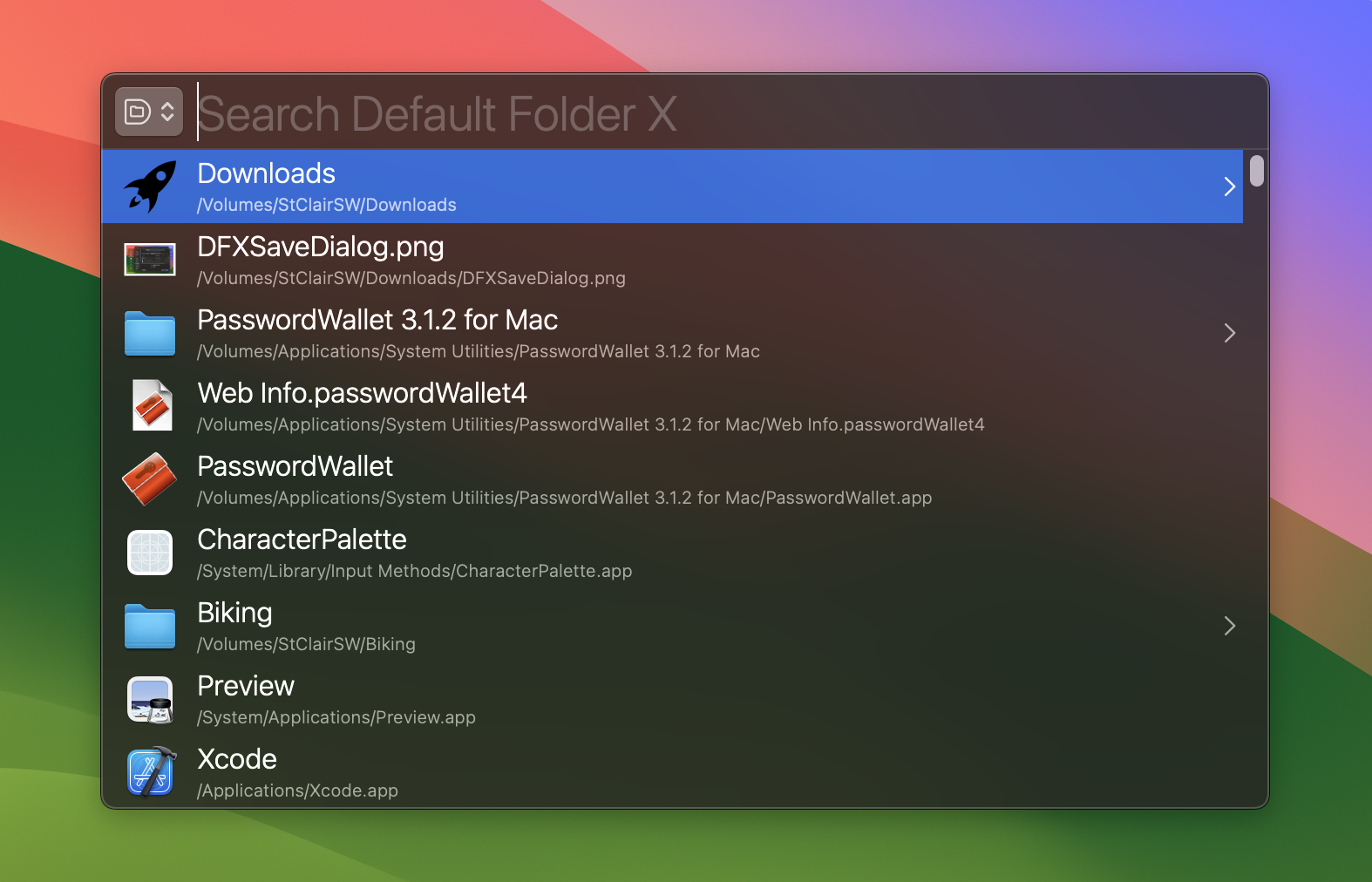
But (there’s always a “but”, right?) when I deployed this new code within Default Folder X, it was inadvertently being called for every file and folder on any of those services. What resulted was a significant slow-down in Default Folder X’s menus, Quick Search, and any other place that the user-facing “display names” of items were shown in bulk (though only if the items happened to reside within one of those cloud services’ folders, so some of you may not have noticed an impact at all). Version 6.0.6 fixes this bug, and I even made that new code faster as well.
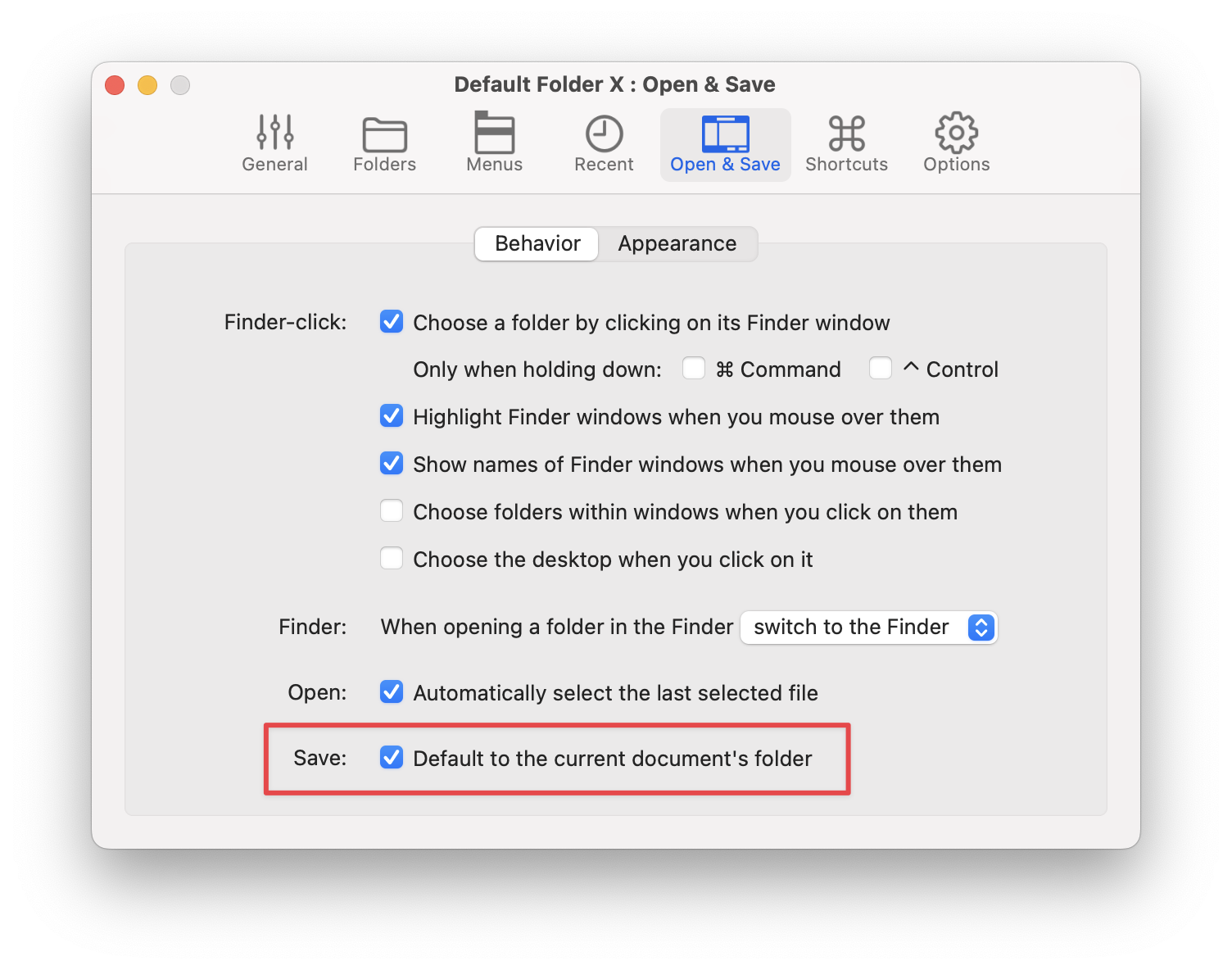
In addition, with some learnings gleaned from dealing with OneDrive again, I also remedied a long-standing problem with Microsoft Word. When you’re editing a document that’s stored in OneDrive, Word doesn’t internally represent that document as being on the local machine, but instead references it via a cloud-based URL. That caused problems for Default Folder X’s “default to the current document’s folder” feature, because as far as Word is concerned, there is no folder for that document on the Mac you’re using – it’s in the cloud.
With this release, Default Folder X translates Word’s OneDrive URL back into a location in the OneDrive folder on your Mac, so the “default to the current document’s folder” feature now works correctly.
Anyway, if you’re already running Default Folder X, just select “Check for Update” from its menu to get the new version. If not, you can download it and read the release notes on the Default Folder X What’s New page. And yes, the update is free if you’ve already bought a Default Folder X 6 license (thank you!).
Version 6.0.5 of Default Folder X is now available, delivering a number of new features and fixes for our award winning utility for navigating macOS Open and Save dialogs and the Finder.
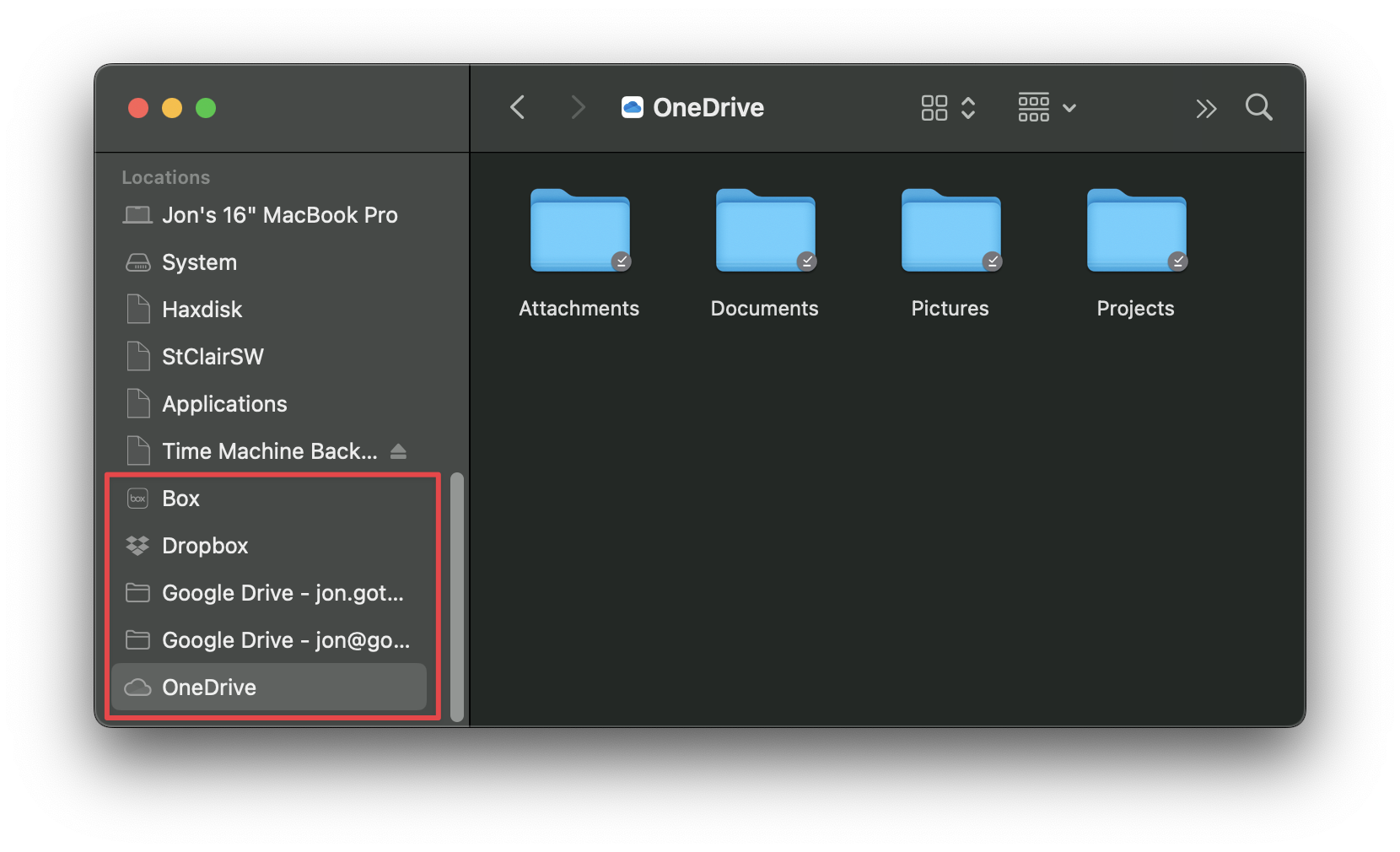
We’ll need a little digression here to explain the first change. “File Provider” based cloud services such as OneDrive, Dropbox, Google Drive and Box all create their synced folders in a hidden location within your Library folder (in ~/Library/CloudStorage/ to be precise). The Finder then represents them the same way it does iCloud Drive, as disembodied “Locations” in the sidebar and in its “Go” menu.
In previous releases, Default Folder X would show these cloud service folders in their real locations. For example, Dropbox would be in ~/Library/CloudStorage/Dropbox/. While that’s accurate and arguably helpful at times, it wasn’t consistent with what you saw in the Finder, so it could be confusing for some folks. Version 6.0.5 of Default Folder X corrects this by mimicking what the Finder does. Cloud services are now shown as top-level locations, rather than being contained within the CloudStorage folder.
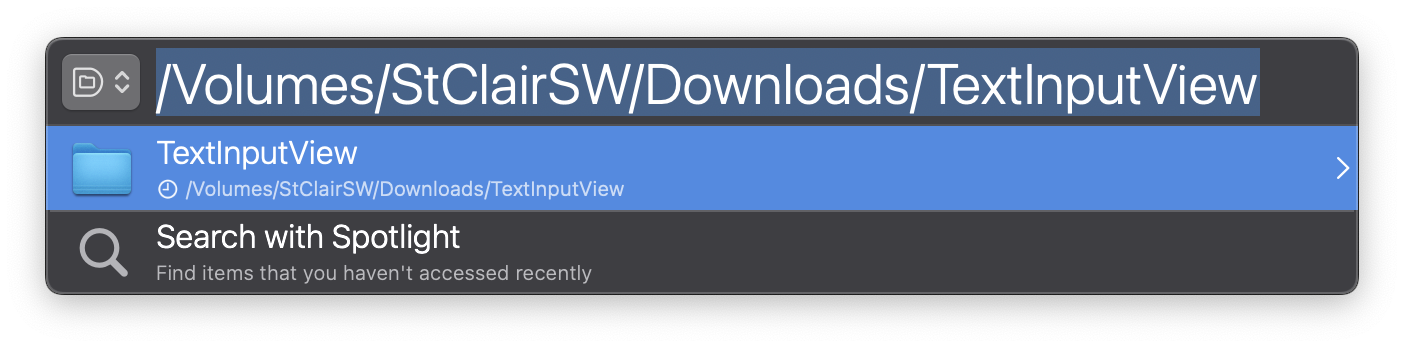
A less confusing change in Default Folder X 6.0.5 is the ability to paste a whole path into the Quick Search window. This does exactly what you think it’d do – it takes you to that location. If you’re using a file dialog, the dialog will switch to show the files and folders at that location. If you’re not, Quick Search will open that folder or file in the Finder. Pretty straightforward and very quick if you’re a person that’s dealing with paths a lot.
In addition, Default Folder X’s Finder drawer and Drag Zone now “follow” files and folders that you’ve dragged into them. If you add a folder to the drawer, then later rename it or drag it to a new location, the reference to it in the drawer will still work. Previously, Default Folder X would just remove the item from the drawer or drag zone once it could no longer find it at its previous location and / or name (which was admittedly kinda lame if you left stuff in the drawer for long periods).
There are also a number of bug fixes, plus improved compatibility with QSpace and Alfred.
You can get full details on the Default Folder X release page, or by choosing “Check for Update” if you’re already running Default Folder X. This update is free if you’ve purchased a license or upgrade for Default Folder X 6. If you’re still running Default Folder X 5.7.8 or earlier, there’s an upgrade fee that’s detailed on the Default Folder X Upgrades page.
Two new releases of Jettison, our little utility for ejecting external disks when your Mac sleeps, have delivered a host of changes. Outwardly, Jettison no longer shows hidden volumes like Update and Macintosh HD – that will reduce confusion. It also lets you quickly open a disk in the Finder by holding down the Command key (the “Eject” menu becomes “Open”). And error messages are more informative.
Under the hood, there are bigger changes which eliminate problems when the system wakes and then goes back to sleep very shortly thereafter, it handles unlocking of encrypted drives much better, and performs numerous other disk-handling operations more smoothly.
A full list of the changes in versions 1.8.6 and 1.8.7 is available on the Jettison release page, or by choosing “Check for Update” if you’re already running Jettison on your Mac.
Version 2.8.3 of App Tamer is available, bringing a couple of new capabilities and addressing problems with controlling processes during and after system sleep.
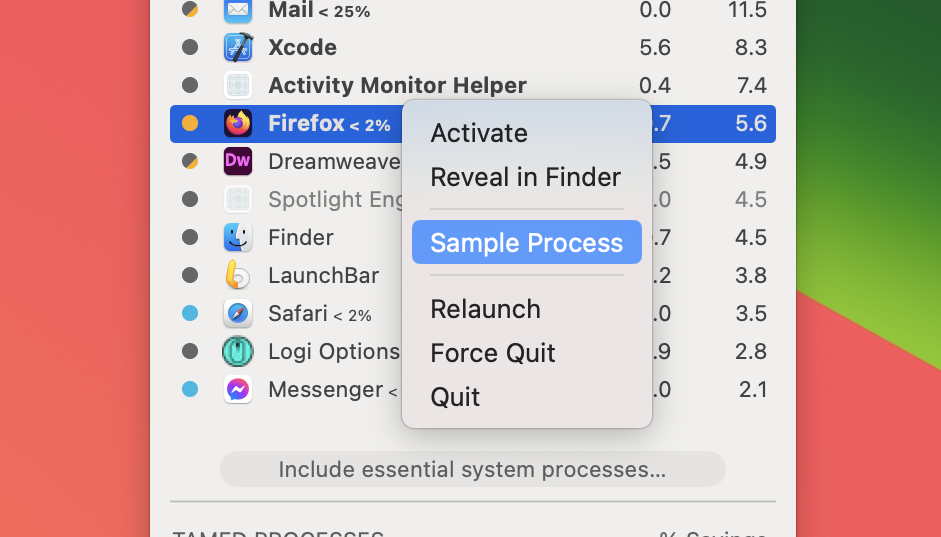
First, there a new “Sample Process” command in the contextual menu in App Tamer’s process list:
This does the same thing as the Sample Process command in Apple’s Activity Monitor. It samples the process every millisecond for 10 seconds, recording the call stacks of all threads at each sample point. This is saved to a text file and automatically opened in your default text editor. A sample report can be useful to see what’s happening internally in an app, and can be used to get an idea why an app is consuming a lot of CPU.
App Tamer 2.8.3 also supports Chromium web apps. These are separate site-specific browser apps that you can create with Chromium – they function as separate apps, but use Chromium as their browser engine. App Tamer knows not to slow down Chromium when a web app is in front, since the web app needs Chromium running at full speed in order to show its web content.
Finally, this release is able to correctly slow down processes and run them on efficiency cores during and after system sleep. In previous versions of App Tamer processes would sometimes not be managed at all during sleep, or would run very slowly after waking from sleep. This would eventually correct itself, but definitely wasn’t ideal. The root cause of App Tamer’s confusion has been fixed so everything works as it should.
This update is free if you’ve already got an App Tamer license. Details and download links are available on the App Tamer release page, or by choosing “Check for Update” from the menu in the lower right corner of App Tamer’s window.
HistoryHound 2.3.5 is available, delivering updated support for the Opera web browser and correcting several issues. HistoryHound’s built-in search paths will now correctly find Opera’s history and bookmark files, even if you have multiple user profiles set up.
There were also cases where having multiple user profiles in Chrome or Firefox (or any browser based on those engines) could confuse HistoryHound and result in it re-scanning pages in the browsing history of an inactive profile even though you hadn’t visited the pages again.
In addition, HistoryHound was referencing pages based on the URL that was requested by the browser. In some cases, that URL gets changed by the server when it returns the page data, and this could result in HistoryHound indexing multiple copies of the same page, depending on how the browser logged things in its history. This has been fixed.
And finally, a change in Apple’s WebKit API now results in runtime exceptions when .webarchive files are loaded in a background thread. As a result, HistoryHound 2.3.5 now loads those files in its main thread to avoid generating errors.
This update is free to users who’ve already got a HistoryHound license. You can download it from the HistoryHound What’s New page, or if you’re already running HistoryHound, just choose “Check for Updates” from its application menu.
A lot of you have been asking for integration with QSpace so that you can use Default Folder X’s Finder-click feature to quickly access folders shown in your QSpace windows. I’m happy to report that after working with Wenda, the developer behind QSpace, we’ve made that happen!
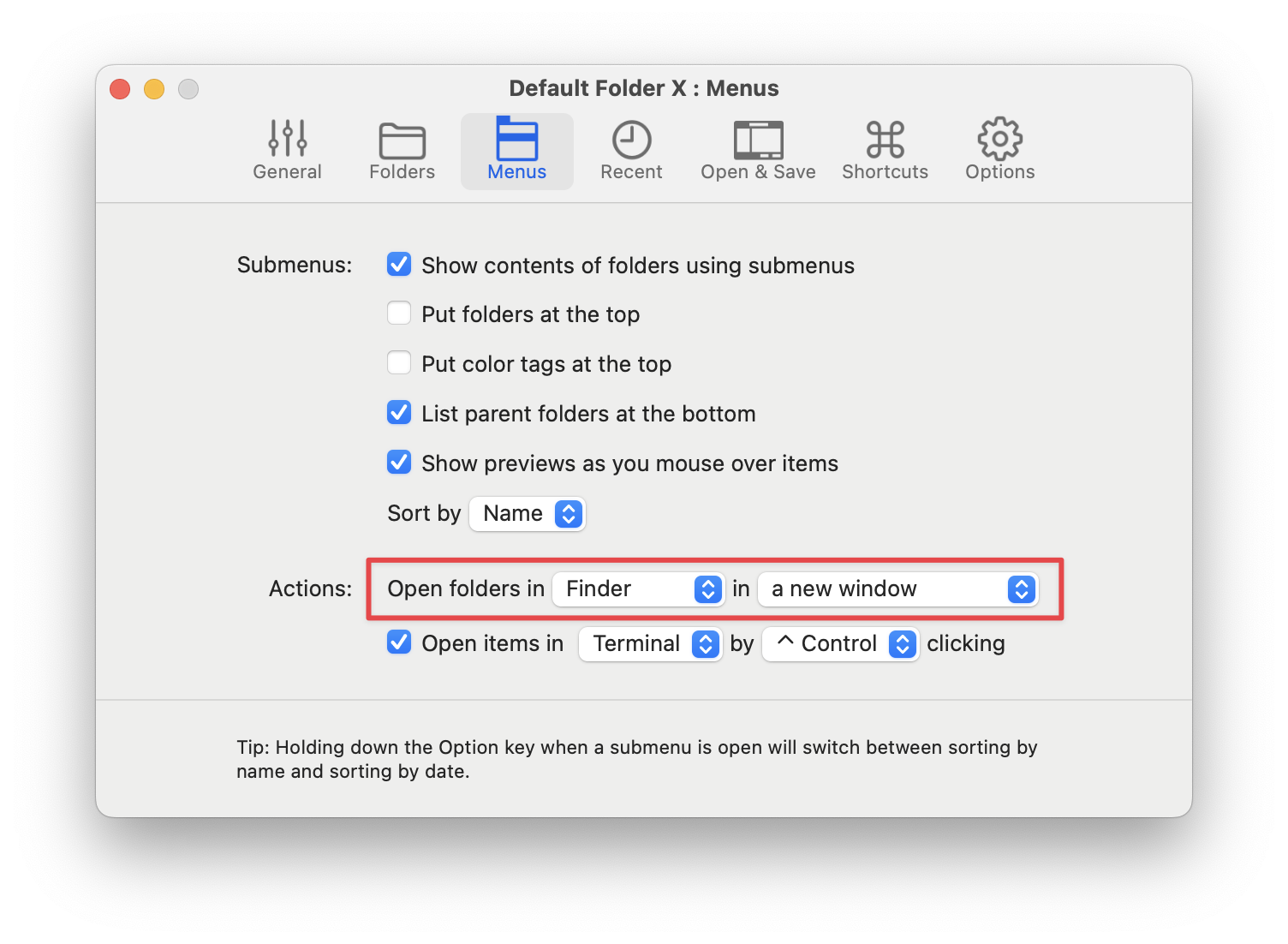
Default Folder X 6.0.4 will automatically recognize open QSpace windows. They’ll be listed in Default Folder X’s Finder Windows menu, the Finder-click feature will jump to folders when you click on QSpace windows while in an Open or Save dialog, and you can set up Default Folder X to open folders in QSpace instead of the Finder (note that you need at least QSpace 4.2.1 or QSpace Pro 4.2.2 for all of this to work).
Oh – and a quick Finder-click pro tip: Right-click on a QSpace window to pop up a menu that shows the folders shown in all panes of the window.
And speaking of opening folders, you can now explicitly tell Default Folder X whether to open folders in the Finder, QSpace, ForkLift or Path Finder when you choose them from Default Folder X’s menus. 👉🏼
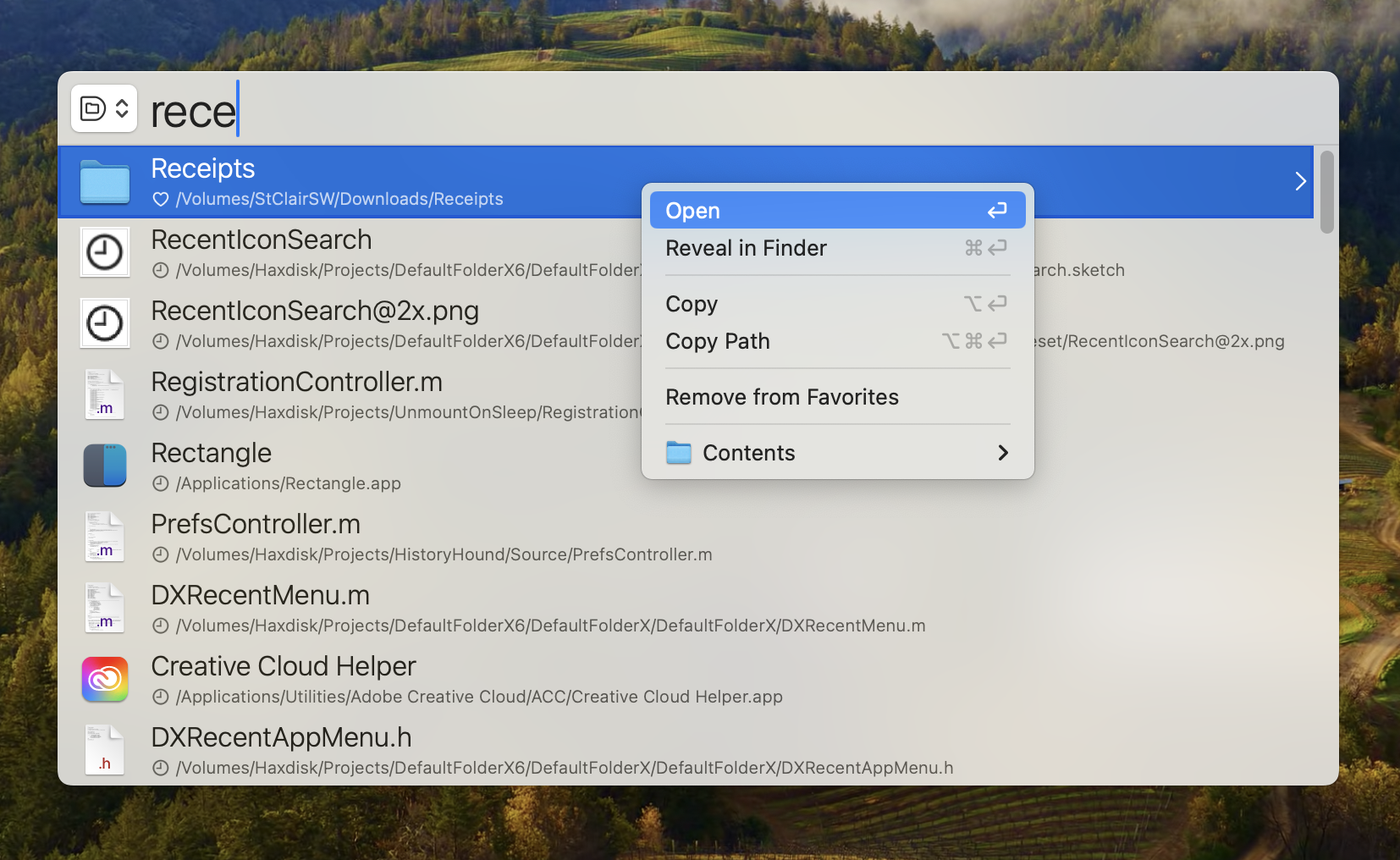
In version 6.0.4, Quick Search has gotten a few enhancements, including little icons beneath each search result to show whether Default Folder X found that item in your recent history, favorites, or a standard app location. And when you right-click on a result, you can now copy the file or folder, add or remove it from your favorites, or remove it from the recent file / folder / app history (depending on where it was found).
And last, but definitely not least, Default Folder X 6.0.4 includes several bug fixes. The biggest is the elimination of an annoying delay that could occur when a Save dialog first came up. Not only did the bug produce a hiccup that made you wait, but it could swallow a character or two if you started typing a name for your saved file right away. My apologies for not catching this problem when we tested version 6.0.3 – the conditions that caused it weren’t present on my or any of my testers’ Macs because of settings changes that we made while testing previous releases.
A full list of changes and download links are available on the Default Folder X What’s New page. Or if you’re already running Default Folder X, just choose “Check for Update” from its menu in your menu bar.
Version 6.0.3 of Default Folder X is available now, polishing up a number of details to make sure that Quick Search finds what you want and that everything works consistently. To that end, files and folders are now added to your “recent” history when you drag & drop them to Default Folder X’s menu and when you select Favorites anywhere in the app.
In addition, selecting text in the edit field of Save dialogs is now smarter, Command+S works to trigger the “Save” button as it should, and recently used tags are displayed below the file dialog in a more helpful order. In Quick Search, Option+Return copies the path of the item you’ve selected.
“This is one of the weirder bugs I have seen”
That was the subject of the email I received, detailing a problem in Default Folder X. Have a look at this animated gif for an amusing illustration of it – this is what happened if you clicked on the menu and then just paused and did nothing.
Definitely weird! When I saw it, I couldn’t even come up with a way I could have misused or abused an API to get this behavior. It turns out it was a combination of a bug in Default Folder X and a bug in Sonoma that combined to create this nice “marching menu items” effect.
First, if you turned on one of Default Folder X’s secret settings, the menus would continually re-sort themselves. That was a bug, but normally wasn’t readily apparent because the menu items just got sorted in the same order they were already in. BUT – if there’s a bug in Sonoma that moves the contents of a menu item to the right 32 pixels each time you update an existing icon, then it does this funky little slide dance. Pretty cool, eh? Anyway, the underlying sorting-all-the-time bug in DFX is fixed, and I’ve also worked around the slidey-bug in Sonoma by replacing sorted menu items with newly-created, icon-less ones before updating their contents.
Version 6.0.3 also fixes another sorting problem that occurred if you customized Default Folder X’s menu bar menu to include recent items in the top-level menu. If you did that and sorted recent items by name, the items either wouldn’t get sorted or would sort incorrectly. It also corrects problems with pop-up keyboard navigators like Raycast, LaunchBar, Alfred and Spotlight not working in Save dialogs on earlier versions of macOS (Monterey and prior).
For the full change history and download links, head over to the Default Folder X What’s New page. Or if you’re already running Default Folder X, just choose Check for Update from its menu in your menu bar.
Version 6.0.2 of Default Folder X is available, fine-tuning our app for quickly navigating your files and folders. This release offers a solution for folks that want to quickly pop up DFX’s Quick Search window and then browse back through their file and folder history. Just hit the Down Arrow key in the empty Quick Search window and you’ll get a list you can scroll through. The most recent items are at the top.
I also got a great suggestion from Martin C. to make Command+L a keyboard shortcut to get back to the filename entry field in Save dialogs after you’ve clicked away from it. That’s also in this update. We’re all so used to hitting Command+L to enter an URL in our web browsers that it’s second nature after a couple of uses. Brilliant, Martin – thank you!
Default Folder X 6.0.2 delivers a bunch of bug fixes for various issues, as well. It addresses everything from problems switching between folders in file dialogs to a bizarre bug that could cause the keyboard to stop responding until you quit Default Folder X. A full list of fixes is available on the Default Folder X What’s New page, along with download links.
If you’ve already bought the version 6 upgrade, this update is free. If you’re still running version 5, you may have to purchase the upgrade – hop over to the Default Folder X Upgrade page for details.
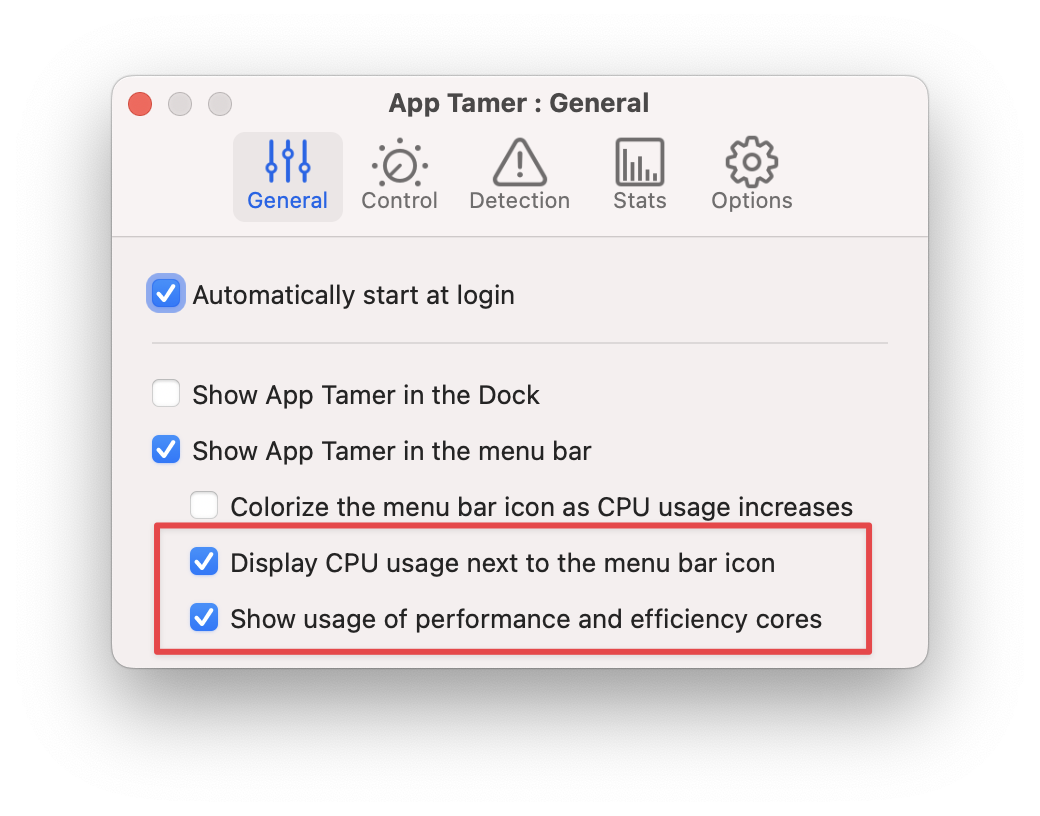
Version 2.8.2 of App Tamer is available, giving you the option to save a few pixels of menu bar space while still displaying CPU stats.
A user emailed recently and asked why App Tamer couldn’t just display the stats for performance and efficiency cores without the total CPU usage. He pointed out that the total is, after all, just the sum of the ‘P’ and ‘E’ values and he can add those together himself. Given the plethora of menu bar apps these days, he’d rather do that and save the extra 30 pixels that the overall CPU usage takes in his menu bar.
Well then – I’m not sure why I never thought of that myself 🤦🏻♂️. So here it is – App Tamer 2.8.2 separates control of the overall CPU display from the performance and efficiency core values, giving you more choices in configuring what it shows in your menu bar.
In addition, this release fixes two bugs that could result in apps running slowly even when they’re in the foreground. The first could occur when your Mac wakes from sleep with a throttled app frontmost. The second case only happens if you force-quit App Tamer or if it crashes for some reason (which is fortunately a very rare occurrence). In both instances, apps will now be returned to their correct state, running at full speed and on your Mac’s performance cores if you’re using an Apple Silicon powered Mac.
Details and download links are on the App Tamer “What’s New” page. Or if you’re already running App Tamer, just choose “Check for Update” from the menu in the lower-right corner of its window to get the new version.
I was so busy getting version 6 of Default Folder X rolled out that I neglected to blog about it when it finally dropped. Oops! If you missed my earlier posts about Default Folder X 6, check out the tour of Default Folder X’s new features.
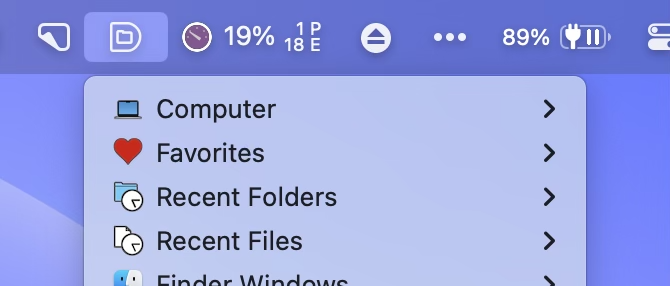
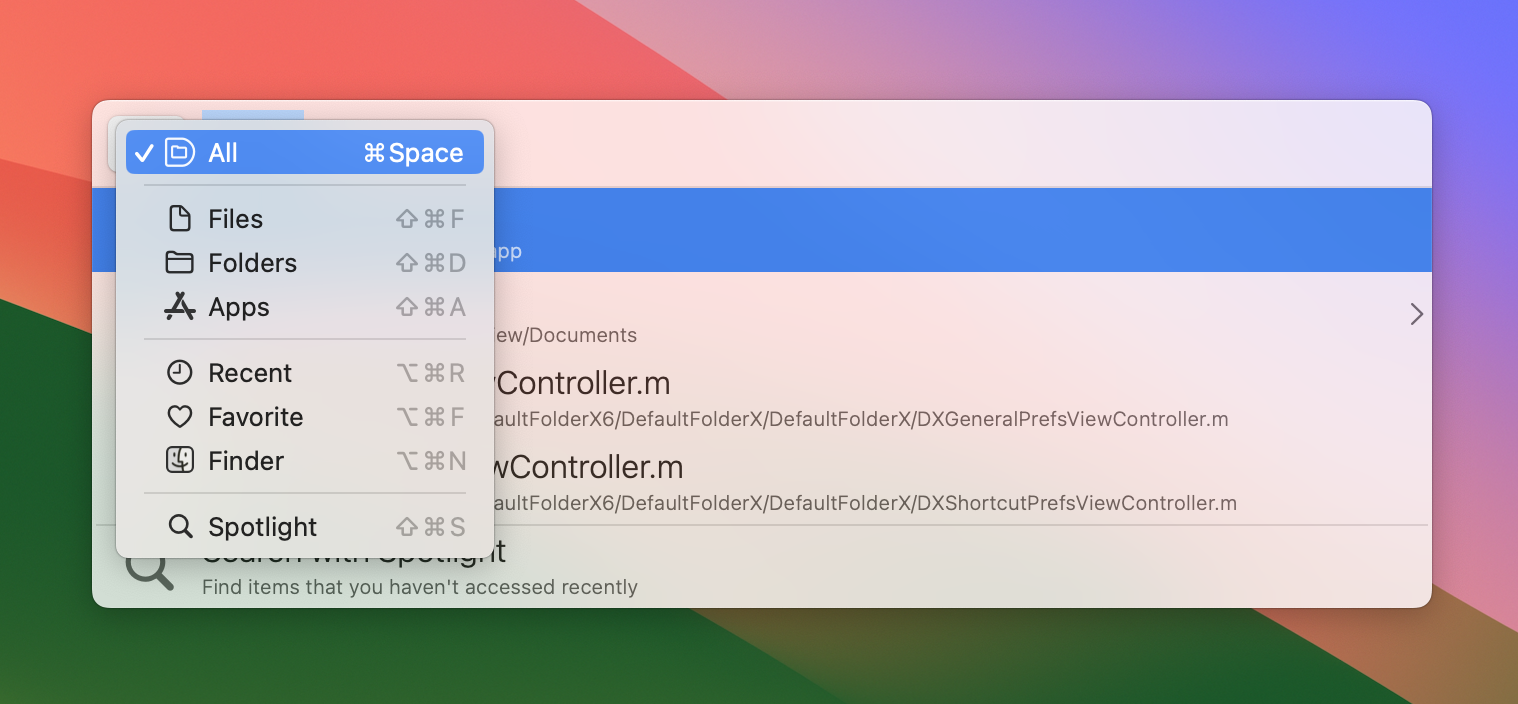
Today we’re up to version 6.0.1, adding a few nice enhancements like the new menu bar icon you see above and changeable keyboard shortcuts for the search modes in Quick Search. There are also some convenient little Quick Search additions like the ability to recall past searches, always remembering your previous search mode, and being able to flip back to “Search All” by just hitting the keyboard shortcut twice.
This update also delivers fixes for issues that have been reported since the release of 6.0. The largest of these is improved support for older versions of macOS (Monterey and prior), where Default Folder X could sometimes stumble when taking you to a new folder or file in Open and Save dialogs.
Default Folder X’s new “Make the filename editing field wider” feature in Save dialogs now works well with TextExpander macros that pop up an input window. Previously, TextExpander would often refuse to paste its text because DFX’s wider edit field confused it.
Also fixed are problems typing text in Save dialogs that had custom edit fields below the file list. Affected apps included Adobe Illustrator, Microsoft PowerPoint and PDFPen Pro. Menus showing the contents of folders containing tens of thousands of items are now built reliably, Save Actions are synced correctly via iCloud, and a number of smaller issues have also been addressed.
For a complete list of changes, check out the Default Folder X Release Page. You can also download the new version there, though if you’re already running Default Folder X, just choose “Check for Update” from its menu in your menu bar.
Default Folder X 6.0.1 is a free update if you’ve already bought a version 6 license. If you haven’t upgraded yet, there may be a cost, depending on when you last purchased a license or upgrade. Details are on the Default Folder X Upgrade Page.