Version 5.3.7 of Default Folder X introduced a new capability: it can now ask what the default folder for an application should be on the fly using AppleScript. That may sound like a mouthful of jargon, so let me explain, because it can be applied in a lot of situations.
Jason Snell (of Six Colors and The Incomparable fame) has been writing about Macs forever, and is now a prolific podcaster. He emailed to ask if it would be possible to make Default Folder X more flexible. At that time, you could set a default folder for an application so that when you chose Save As, it always offered to save a file in that particular folder. His problem was that you have to set a single folder as the app’s default folder – just one.
Jason creates podcasts – lots of them. His reasoning was that if he could magically tell Default Folder X what podcast he was working on, it would always offer to save the component audio files into the folder for that podcast. Essentially: Wouldn’t it be great if you could edit an audio clip, hit Save, and have it automatically go into the folder for the current podcast folder? No re-configuring a default folder for each new project – it’d just work.
So he hit on this idea (which I think is just brilliant). He uses Apple’s Logic X application to create his podcasts. So for each podcast episode, there’s one master Logic X project file. To find the correct default folder for audio clips, all he has to do is look at all the project files and see which one has been saved most recently. The “Audio Files” folder sitting next to that project is where everything should go for the current project. He wrote an AppleScript to do this, which he shared on the Six Colors blog.
This can obviously translate to all sorts of different workflows. If you have one primary file for each project, it’s easy to tell which one you’re currently working on – it’s the one that’s been saved most recently.
How to set up an AppleScript to specify a default folder
So how do you wire up Default Folder X to do this? It’s pretty simple. Put an AppleScript script in:
or, if you want it to handle only a single application, put it in a sub-folder of the Scripts folder named for the application you want it to serve. To have it queried only for Preview, for example, put an AppleScript in:
The trick is that you need to implement this handler:
on getDefaultFolder(appName, dialogType, firstTime)
which returns the location of the default folder. Open up the sample script file in Script Editor (or your AppleScript editor of choice) and have a look. I’ve tried to explain things clearly in the comment at the top, and the script shows a number of different ways of returning folders to Default Folder X. And of course, you can also use Jason’s complete script as a starting point.
I think Jason’s idea is great – it streamlines work on multiple projects, but most importantly, it reduces the chance for error as you’re trying to meet that pressing deadline. I’d love to hear how others use this feature, so please drop me a line if it works for you too!
Houdah Software released a major upgrade of their excellent Spotlight search utility, HoudahSpot 5, last week. Among a ton of useful new features, HoudahSpot now also integrates with Default Folder X, giving you a much more powerful way to search for files and folders in Open and Save dialogs.
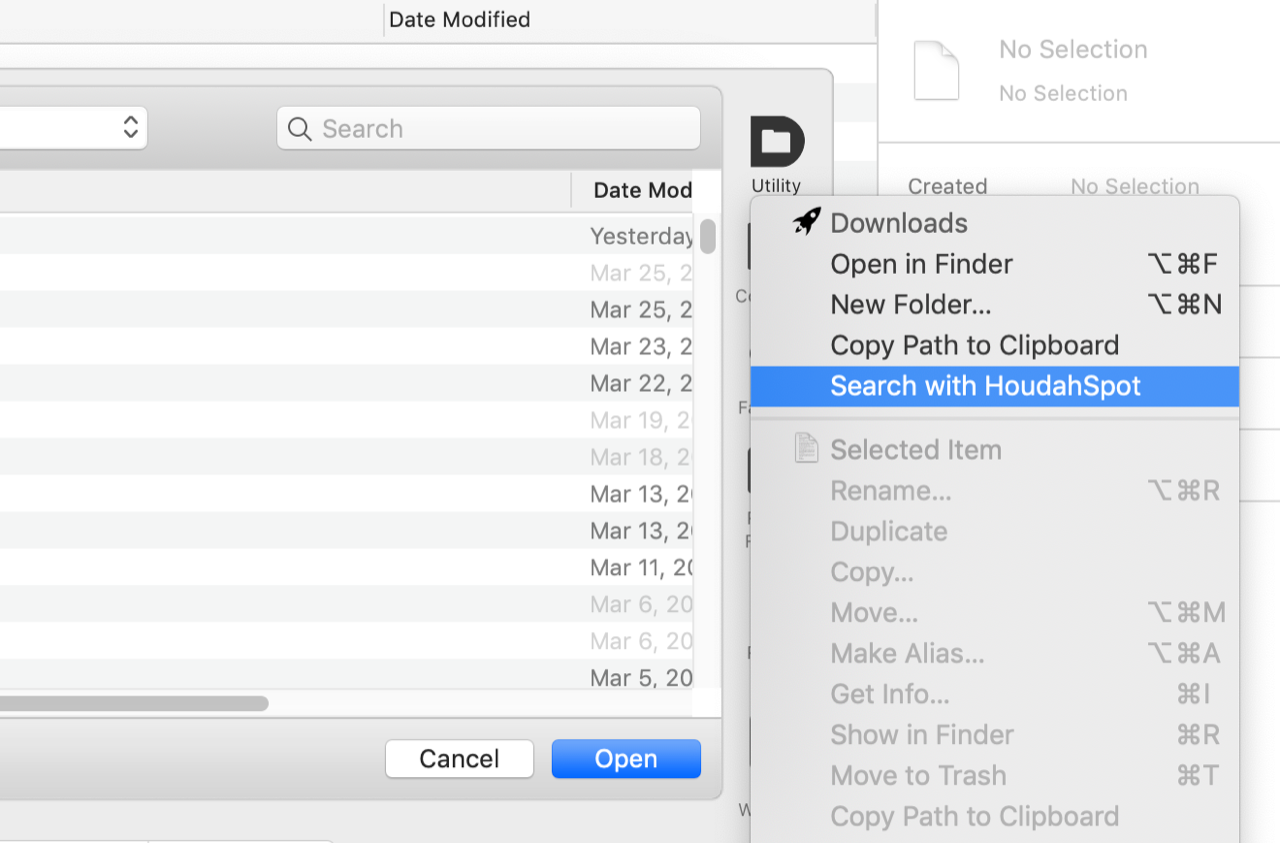
Just select “Search with HoudahSpot” from Default Folder X’s Utility menu
When you’re in a file dialog, Default Folder X provides a menu command to quickly search the currently displayed folder in HoudahSpot. This gives you the flexibility to search by file type, tags, content, modification date, or any other parameter you can think of.
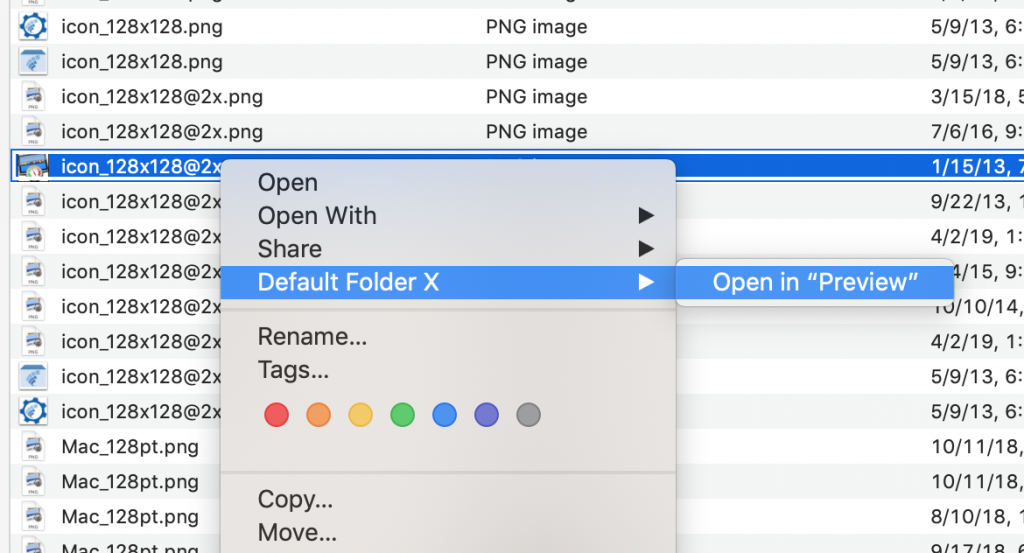
And use HoudahSpot’s “Default Folder X” menu to send a search result to a waiting file dialog
Once you’ve located the file you want in HoudahSpot, Control-click on that file and use the “Default Folder X” menu to finish the round trip and send it back to the waiting file dialog (in Preview, in this case).
I’m happy to have had the chance to collaborate with Pierre Bernard, HoudahSpot’s developer, on this workflow. It delivers more convenience and time-savings to all the folks that use both HoudahSpot and Default Folder X.
If you have ideas for similar connections between your favorite indie applications, let the developers know – many of us are very receptive to your suggestions. Default Folder X also integrates with ForkLift and Path Finder, for example, because lots of people asked for it!
Version 5.3.6 of Default Folder X delivers fixes for a few problems that have cropped since the last release. The most significant is a bug that caused the mouse cursor to disappear when using an Open or Save dialog, resulting in things appearing “stuck”. This occurred if you were using SteerMouse or any other utility that modified mouse behavior on the fly.
A change that I made in 5.3.5 also resulted in Default Folder X’s Finder-click feature being disabled if there was a Keyboard Maestro floating palette showing anywhere on-screen. That’s now fixed in 5.3.6 – my apologies to all of you joint Default Folder X / Keyboard Maestro users out there!
This release also includes a number of bug fixes for crashes, startup hangs, user interface issues, and a problem with the Finder-click feature not switching its list of Finder windows when you switch Spaces.
You can see the release notes and grab the latest version from the Default Folder X Release Page, or by choosing “Check for Updates” from Default Folder X’s menu if you’re running it now.
While there isn’t a giant “marquee feature” in this release, version 5.3.5 of Default Folder X delivers a long list of improvements.
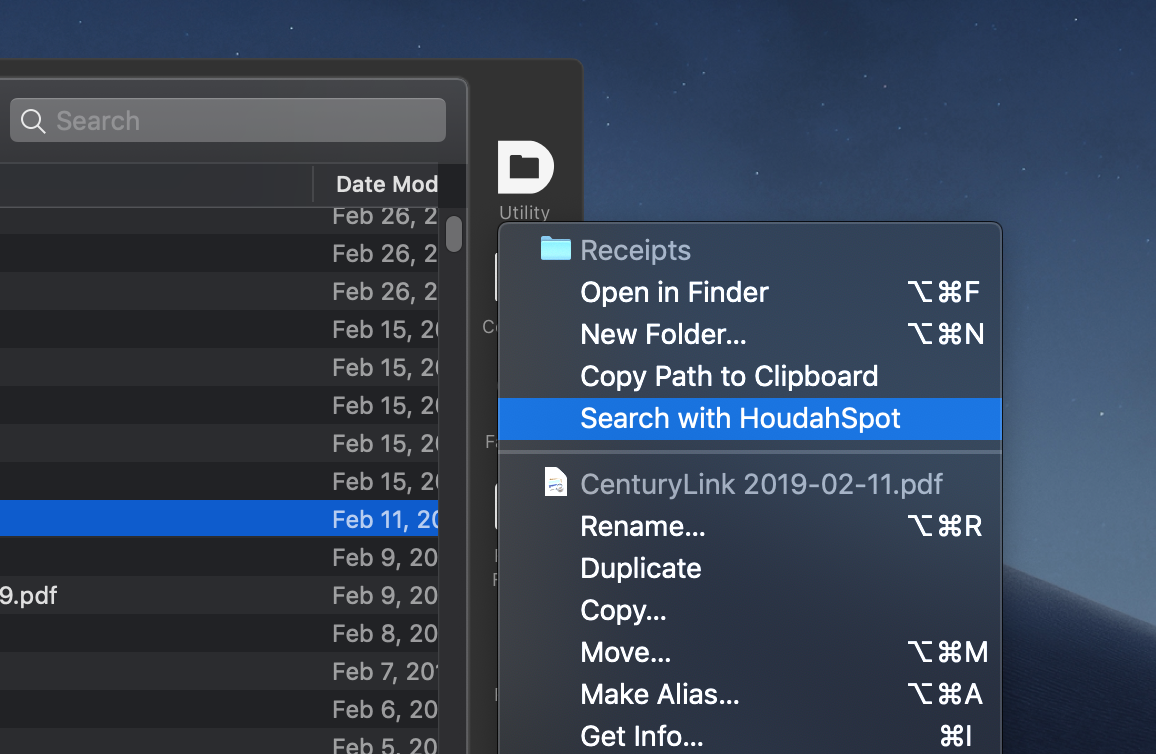
‘Search with HoudahSpot’ in the Utility menu
In terms of new functionality, users of HoudahSpot (and those of you that don’t use it and should go try it now) will be happy to see that you can start a search directly from an Open or Save dialog. This helps overcome the weak search functionality that macOS offers by default in file dialogs. And with the upcoming release of HoudahSpot 5, you’ll be able to make “round-trip” searches, sending results back to the waiting file dialog after you’ve found what you want.
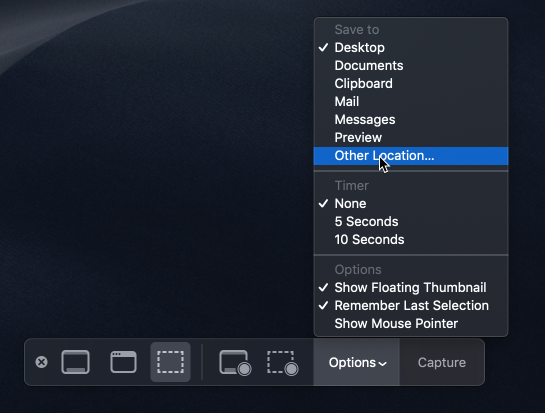
You can save screenshots to any folder you want using Mojave’s screenshot tool
Compatibility fixes for LaunchBar and CopyPaste Pro are also in version 5.3.5, as well as a fix so that Default Folder X works in the Save dialogs used by Mojave’s new screenshot utility. The latter was an interesting (and understandable) situation: Mojave’s screen capture app basically covers the entire screen with a big, semi-transparent window to let you rubber-band select an area and whatnot. If you then choose “Other Location…” to select a folder, the attendant file dialog has to come up on top of the giant window so you can use it. Since the big window is covering everything else, including Default Folder X, DFX didn’t work because mouse and keyboard clicks couldn’t get through. It just wasn’t something I’d planned for – so now I have 🙂
Version 5.3.5 also offers a bunch of improvements for Default Folder X’s drawer in the Finder, fixes for bugs involving its selection of recent files and folders in Open and Save dialogs, a problem with file dialog sheets when they’re the full width of the screen, and issues with some many-button mice.
Oh, and the secret settings dialog now lets you turn on “view-matching” for the Finder-click feature, making Default Folder X apply whatever view mode (Icon / List / Column) is used in the Finder window to the file dialog. And you can specify a minimum width and height for file dialogs, preventing them from coming up in a uselessly-small default size. Hold down the Option key while choosing Preferences from Default Folder X’s menu to get there.
Thanks to Rick Meikle’s careful detailing of exactly what has been wrong with Default Folder X’s “rebound” feature, I’ve now rewritten the rebound code to work much better. It’s in the latest development build of DFX, which is available here:
In addition, I’ve added a hidden option to display files as well as folders in Default Folder X’s hierarchical menus. When you select a file, the file dialog is taken to its parent folder and the file is selected if the current application can open it. To get to the switch to turn this on, go to Default Folder X in System Preferences and click on the “Settings…” button while holding down the Option key. Turn on the bottom checkbox in the window that comes up – it’s labeled “AlwaysShowFilesInMenus”.
As always, your comments, feedback, and bug reports are crucial to making better software, so speak up!
Default Folder X 4.0.8 was just released, delivering a few bug fixes and enhanced tracking of recent folders. Ostensibly this fixes compatibility issues with Bias Peak and QuickBooks Pro, but may also affect other applications, so you should update even if you don’t use Peak or QuickBooks.
I just posted Default Folder X version 4.0.1. Thanks to everyone that provided feedback on the functionality and the UI, tested various fixes for me, and helped sort out a few of the truly funky circumstances surrounding a couple of issues.
I’m very happy with the user interface at this point – the “old style” sidebar turned out very well (thanks for the push Warren)! The preview generator is nice and fast, even under Tiger, and performance and reliability are solid on all machines, not just on the hopped up hardware here in the office and in the original beta group 🙂
You can read the change log and download the new version on this page:
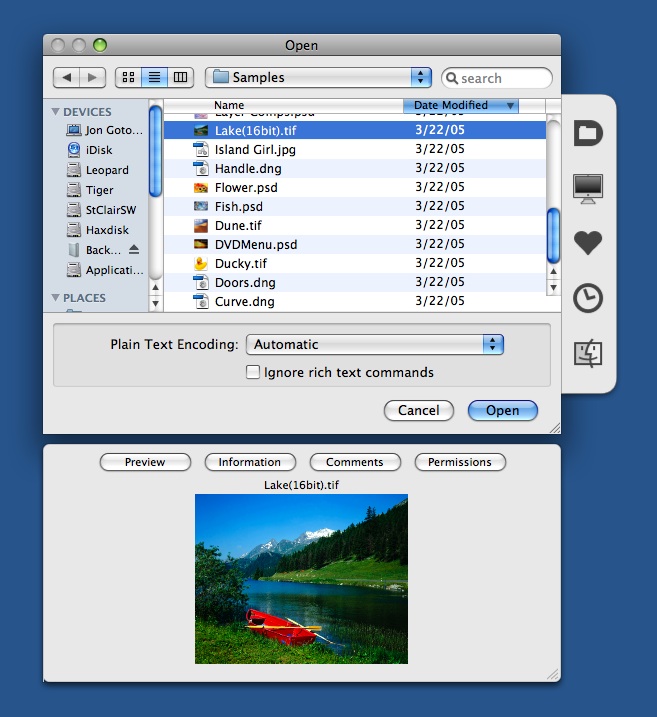
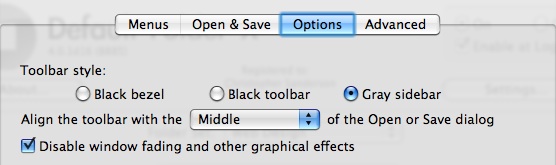
OK, so there’s a (very) vocal minority that really don’t like (some have even used the word “hate”) the black HUD windows in Default Folder X 4. For you folks, here’s the solution in a pre-release build:
To get this appearance, select “Gray sidebar” in the Options tab of the preferences:
The previews are also created much faster, and with much less overhead. This is especially pronounced on Tiger, where DFX doesn’t have QuickLook at its disposal and has to generate previews with QuickTime, WebKit, and regular text rendering. If you have any performance or stability complaints about version 4.0, please grab this build, give it a try, and fire off an email if you still have issues.
A great review of DFX 4 at PlanetQuark.com, complete with a laundry list of features. Folks seem to either love or hate the new UI (these guys are on the “love” side, I think). Which brings me to my next post….