|
Here are some questions and problems that people often encounter when using HistoryHound.
Before consulting this list, please check to make sure you are running the
latest version, which is HistoryHound 2.3.5. If you need an update, you
can get one by going to the HistoryHound What's New page.
If you have a problem that is not addressed here or feel a question should
be here but isn't, please send mail to support@stclairsoft.com
Can I search for a whole phrase, rather than a combination of terms?
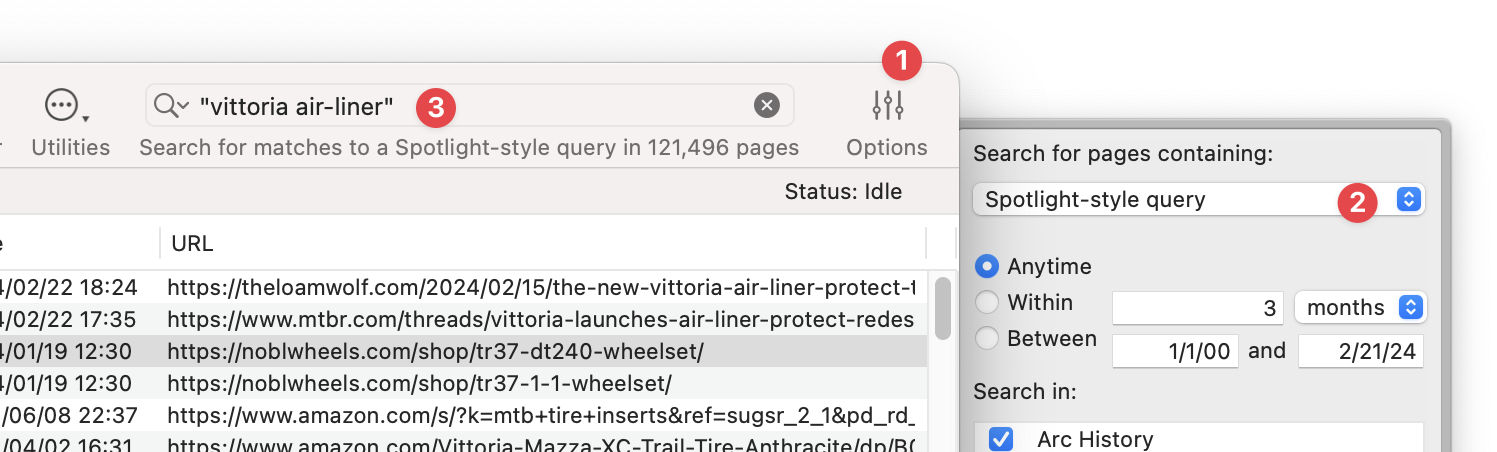
To search for a phrase matching the exact words in the order you specify, do the following:
- Click on the Options button to show the search options drawer
- Change the search type to "Spotlight-style query"
- Enter your phrase enclosed in quotation marks
Can I make HistoryHound always search the
latest news on particular sites?
If you want HistoryHound to always have the latest version of a particular
page in its index, you can create a ".monitor" file. Add the URLs for the pages
to a text file with TextEdit, BBEdit, or some other plain text editor. Save the
file with an extension of ".monitor", and then open HistoryHound's Preferences
window (shown below).
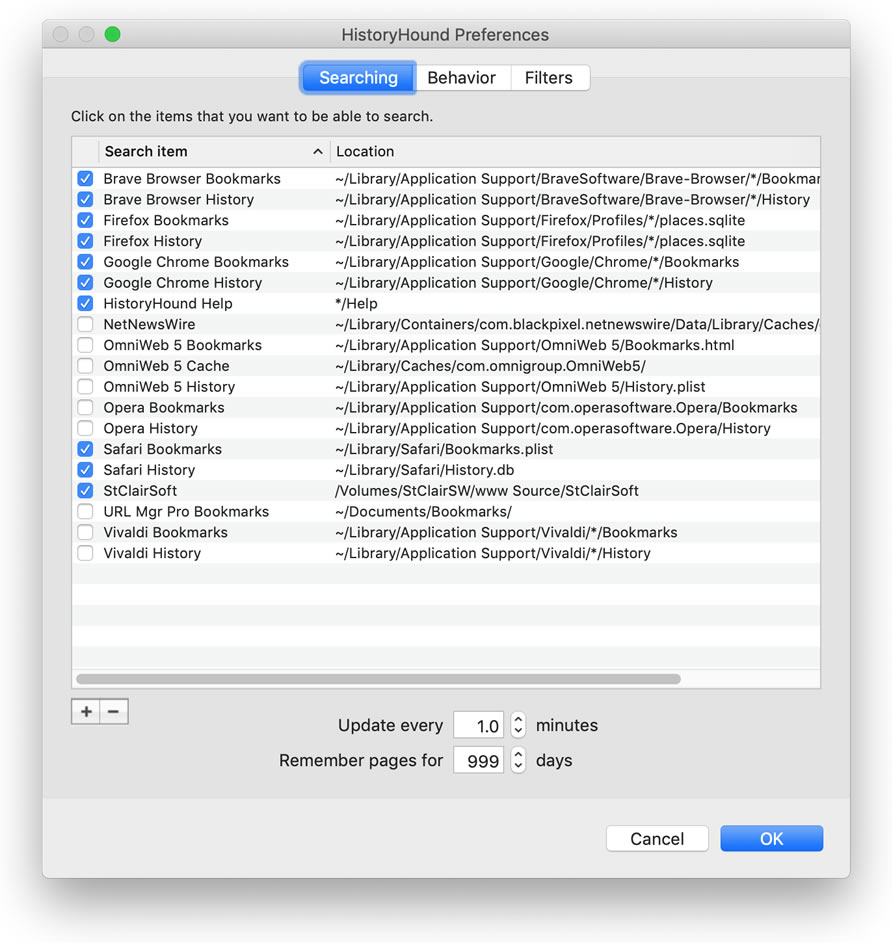
In the "Searching" tab, click on the "+" button below
the list of search items. A sheet will appear, asking you to specify
an URL to add. Click on the
"Choose file or folder" button and select your .monitor file. From
the popup menu, select "Extract URLs from file" as the method for
interpreting the file. Once you've done this, HistoryHound will download new
copies of all the listed pages and replace the older versions of them
in its index.
How do I get rid of pages that I don't want
in my index?
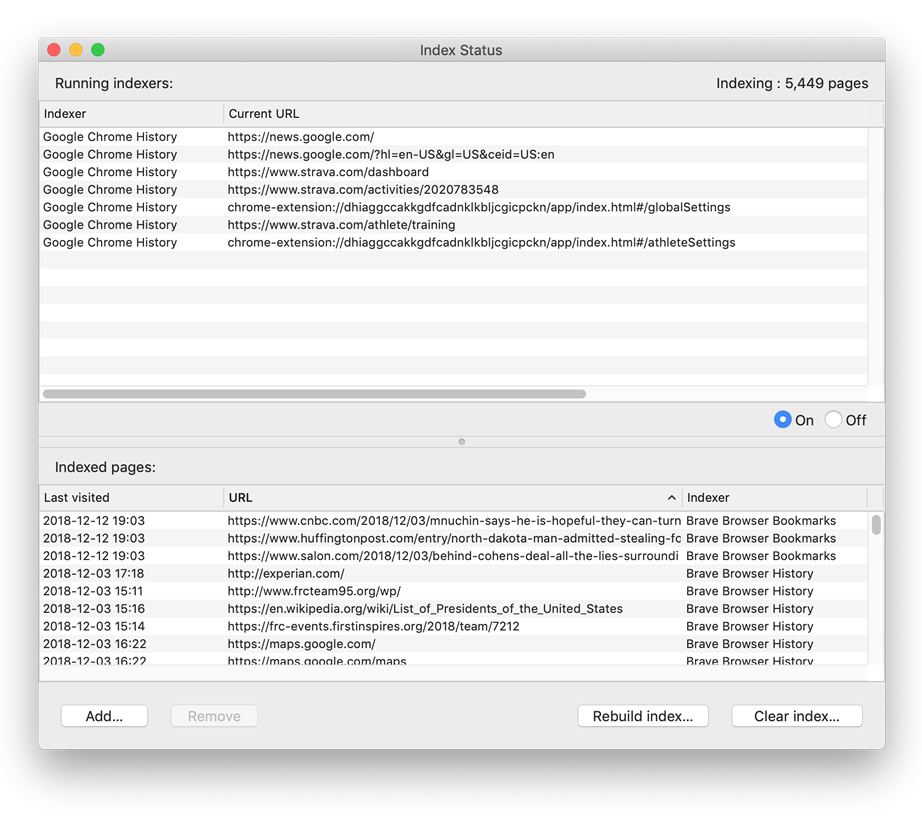
Open the Index Status window, shown below, by choosing it from HistoryHound's
Window menu. In the bottom list, find the URL(s) you want to remove and then
click the Remove button to take them out of your index
Note: You can use the Find command in the Edit menu to search
for a particular URL. Holding down the command key while clicking on an
URL allows you to select multiple URLs at the same time. Holding down the shift
key while clicking on an URL will select everything between that item in
the list and any already-selected item.
Another way to remove pages and prevent them from getting added to the index
again is to add a filter string to HistoryHound's preferences. Choose
Preferences from the HistoryHound menu and then click on the Filters tab to
get to the window shown below.
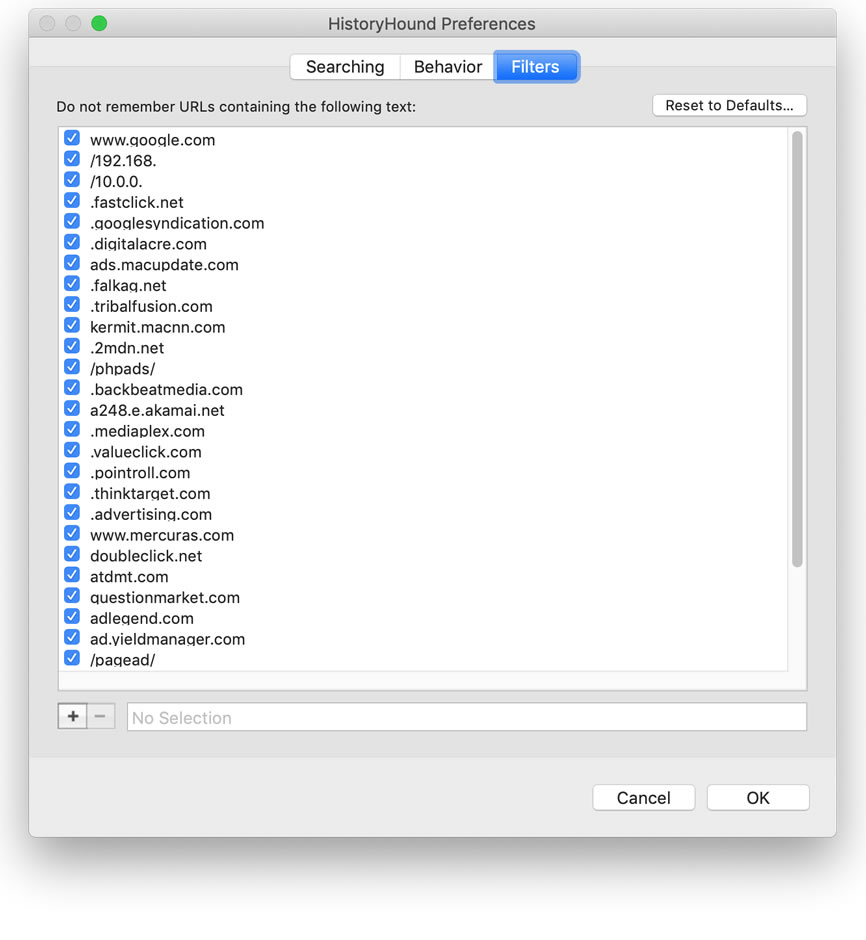
Click on the "+" button to add a new filter,
then type in a string that matches all or part of the
URL that you want kept out of the index. When you click
"OK" to close the preferences window, HistoryHound
will ask you if you also want to use your new filter(s)
to remove items already in the index.
Can I search pages and files other than my browser Bookmarks and History?
Yes, you can add HTML and webarchive files on your hard disk, as well as regular
text files. Please read the "Searching" discussion in the Preferences
section of the HistoryHound Manual.
HistoryHound is slowing down my Mac when it
indexes. How can I fix this?
HistoryHound is designed to download and process multiple pages at a time.
Sometimes the work involved in doing this places too much of a load on your
computer. You can fix this by making a simple change in your HistoryHound preferences.
Choose Preferences from the HistoryHound menu,
then click on the Behavior tab:
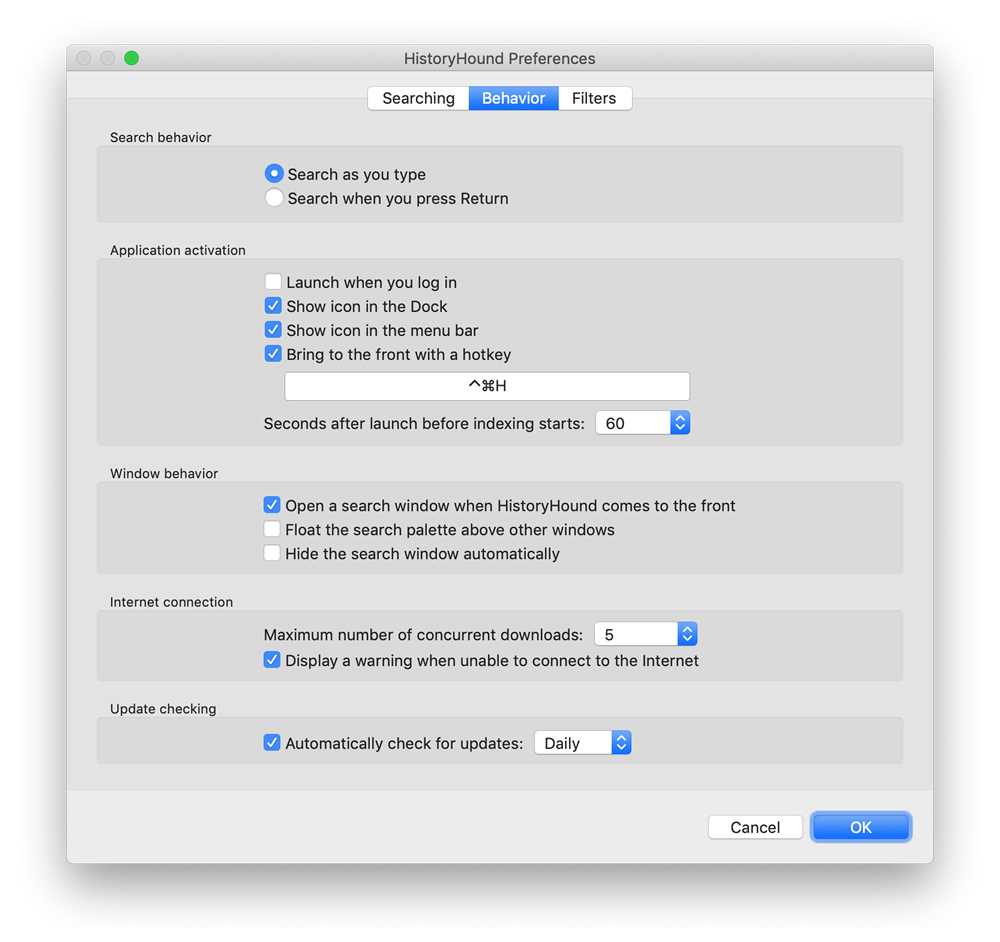
Click on the Maximum number of concurrent downloads menu and change its
value to 1.
I'm getting an error that says "SearchKit could
not open the index for ..." What should I do?
- Go to this folder: HOME/Library/Application Support/HistoryHound/
- Locate the file or files that HistoryHound complained about, and move them to the Desktop.
- Once you've done that, launch HistoryHound and choose "Preferences" from the HistoryHound application menu.
- In the prefs, add a new search item by clicking on the "+" button below the list.
- Select your old index file on the Desktop, and use the popup menu to tell HistoryHound to "Extract URLs from old index". That will get your data back. You'll need to add as many items as you have damaged index files.
Where does HistoryHound keep its index files?
HistoryHound's index files are kept in this folder folder: HOME/Library/Application
Support/HistoryHound/
Note that the index information is stored in pairs of files: One for the text index itself, and one with an extension of ".data" that stores metadata associated with each page in the index. If you remove one file from this folder for any reason, you should remove its companion file to keep HistoryHound from getting confused.
I bought HistoryHound through the Mac App Store. Can I upgrade directly from your web site?
Yes, just download the latest version of HistoryHound here.
Before copying the
new version to your Applications folder, however, please double-click it to
run it once directly from the disk image. HistoryHound will
make a copy of your App Store receipt (which is embedded in the HistoryHound
application that you downloaded from the Mac App Store). You can then copy
HistoryHound to your applications folder, deleting the version that you got
from the Mac App Store.
If you've already replaced your App Store copy of HistoryHound without running
the new version first, you'll need to backtrack a bit. Please do the following:
- Delete all copies of HistoryHound from your Mac.
- Open the App Store application and click on the Purchases tab.
- Find HistoryHound in your list of purchases and re-download it.
- Visit our website again and download HistoryHound from http://www.stclairsoft.com/HistoryHound/
- Click on the .dmg file to open it, then double-click on HistoryHound there.
- Copy HistoryHound from that window to your Applications folder.
|